
Let’s talk about adding and editing text.
To Add, Click & Drag the “Text Editor” Widget
Once you are in the page editor, click on the “Text Editor Widget in the widget panel and drag it to the place you wish to add text.

Below you can see how to add structure in a section for your text as well as how to click and drag the text where you want it.
Set Section Structure for Text
If there is not already a place on the page that you want to drag the text to, you can add a section as demonstrated below.
Open Text Editor Settings
To edit text on your page, hover over the text and click the little white pencil in the blue box that comes up in the top right of the text box.

That will bring up settings for that specific text box.
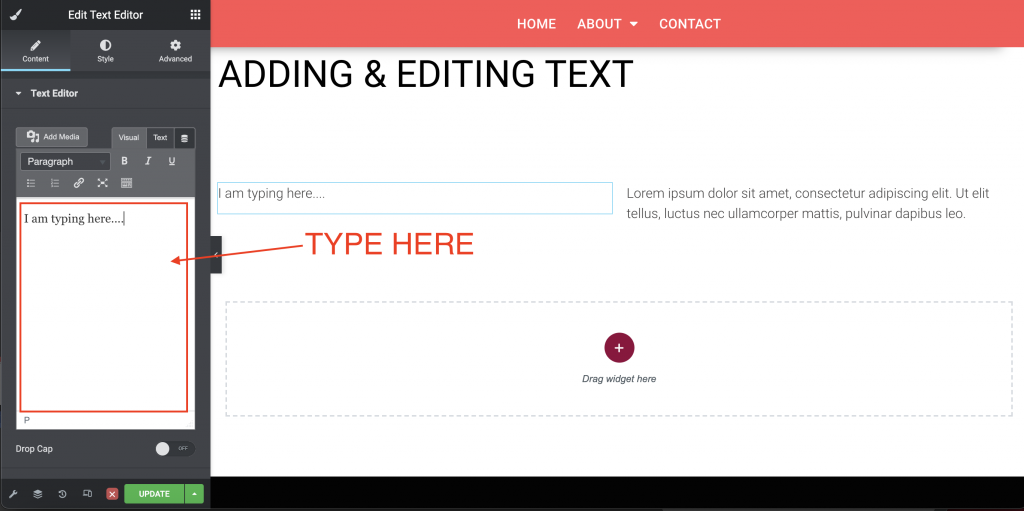
Type & Edit Content
Format Text Style
The text editor has lots of great options that allow you to format your text. From fonts, colors, and alignment, to animation and decorating- this widget is vital. Watch us walk you through a brief tutorial on hot to format your text below.
Save & Exit
As always, once you are done making edits on a page, be sure to click “Update” to save your work before exiting with the red “X”.
